

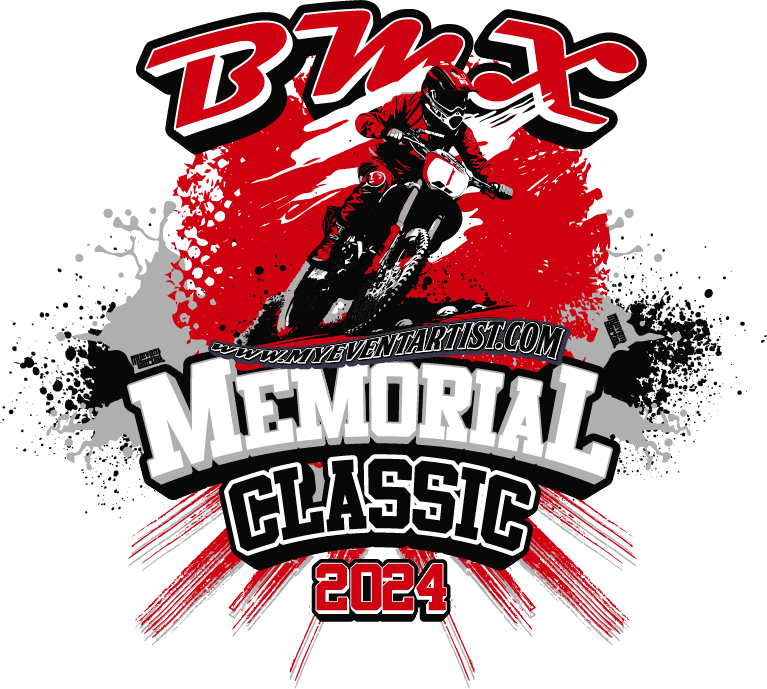
Have you ever wanted to design a captivating and dynamic logo for a sporting event, but weren’t sure where to start? With the right tools and techniques, you can bring your vision to life and ensure your logo is ready for print on various promotional materials. In this detailed guide, we will lead you through the process of creating an event logo design for sports using Adobe Photoshop, followed by the crucial step of converting it to vector format to ensure scalability and quality.
Creating the Event Logo Design in Adobe Photoshop
- Planning and Conceptualization:
- Before diving into Photoshop, brainstorm ideas and concepts that reflect the essence of your sporting event.
- Sketch out rough designs and consider elements such as sports equipment, team mascots, or event themes that represent your event.
- Setting Up Your Workspace:
- Open Adobe Photoshop and create a new canvas with dimensions suitable for your logo design.
- Ensure a high resolution to maintain quality when printing the logo on different materials.
- Designing the Logo:
- Start by laying out the primary elements of your design, such as text, icons, or graphics related to the sporting event.
- Experiment with colors, typography, and layouts to create a visually appealing and coherent logo.
- Adding Effects and Detail:
- Utilize Photoshop’s tools to add effects like shadows, gradients, or textures to enhance the visual impact of your logo.
- Pay attention to details and fine-tune elements to achieve a polished and professional look.
- Finalizing the Design:
- Review your logo design, making any necessary adjustments to ensure it aligns with your initial concept and goals.
- Once satisfied, save the design in a high-resolution format suitable for transfer to vector software.
Converting the Logo to Vector Format
- Opening the Design in a Vector Software:
- Transfer your completed logo design to a vector software such as Adobe Illustrator or CorelDRAW for conversion.
- Import the design file and adjust settings to optimize the conversion process.
- Tracing and Vectorizing:
- Use the tracing tools available in the vector software to convert your design into scalable vector graphics.
- Ensure that the vectorized version retains the integrity and details of your original design.
- Refining the Vectorized Logo:
- Fine-tune the vectorized logo as needed, adjusting anchor points, curves, or line weights for optimal clarity and scalability.
- Verify that the vectorized version maintains the colors and effects from your Photoshop design.
- Exporting the Vector Logo:
- Once satisfied with the vectorized logo, export the design in common vector formats such as AI, EPS, or SVG.
- Save the file in a print-ready format to ensure high-quality reproduction on various materials without loss of clarity.
By following these steps, you can seamlessly transition from creating a visually compelling event logo design in Adobe Photoshop to converting it to vector format for versatile usage and scalability.
For more valuable tips and resources on sporting event logo designs, visit our website at myeventartist.com. Explore our extensive collection of immediately downloadable vector logo designs across various sporting categories to find inspiration for your next event. If you are looking for a custom event logo design tailored to your specific requirements, visit https://myeventartist.com/product/request-custom-event-logo-design/ to submit a request and bring your vision to fruition.
Empower your sporting event branding with captivating and versatile logo designs that leave a lasting impact on participants and spectators alike. Elevate your visual identity with meticulously crafted logos that reflect the spirit and energy of your event.
Keywords: event logo design, sports, Adobe Photoshop, vector format, scalability, quality
#eventlogodesign, #sports, #AdobePhotoshop, #vectorformat, #scalability, #quality